A separate network for smart home devices: how to set it up on your router and what to avoid
Cameras, bulbs and smart plugs are best kept apart from your computer and NAS drive. But an extra "IoT" Wi-Fi network does not always isolate devices, so check your router settings.
Author: Editorial teamPublished: 3 min read
Contents
Smart home devices such as cameras, lighting, air purifiers, plugs or robot vacuums do not have to share a network with your computer and a NAS server holding important files. That is the advice of the Polish tech site Antyweb in an article published on 7 November 2026.
Why separate the networks
IoT (Internet of Things) devices connect to the home network and often rely on their own software and the manufacturer's online services. Some rarely receive updates, and they stay in homes much longer than smartphones or computers.
When everything is on one network, taking over a vulnerable device may make it easier for an attacker to reach the others. The author stresses this does not have to happen, but splitting the network further reduces the risk. A camera or plug needs internet access, but does not need to talk freely to your computer.
An IoT network does not always mean isolation
Many routers let you create an extra Wi-Fi network with its own name and password. That does not mean devices on it cannot communicate with equipment on the main network.
On TP-Link Deco routers, the IoT Network feature creates a separate Wi-Fi network but does not isolate devices by itself; that is done by a separate Device Isolation feature. On some ASUS routers, the option to use the same subnet as the main network may be switched on by default when setting up an IoT network. Only turning it off truly separates the two networks.
The relevant setting may go by different names, such as "Device Isolation", "Client Isolation", "Allow Local Access" or "Network Isolation". Similarly named options do not always work the same way across manufacturers, so it is worth reading the manual.
How to set it up
The simplest option is to keep computers, smartphones and the NAS on the main network and move smart home devices to a separate IoT network with isolation switched on. They can then reach the internet if they need to, but not the other devices in the home.
Not every device works the same way, though. Many robot vacuums, cameras and appliances use the manufacturer's servers so they can be controlled from outside the home. Some Matter-compatible devices can work locally, without the internet. Bulbs, sensors and switches using Zigbee or Thread do not connect directly to Wi-Fi, but to a hub or other parts of the smart home system.
If your router has no IoT network option, you can use a guest network, as long as it really isolates devices from the main network. You need to check that this does not prevent local control. More advanced routers support VLANs, which logically divide devices into groups. You could, for example, let IoT devices reach the internet while blocking their access to computers.
A separate network has a practical benefit too: older devices often support only 2.4 GHz Wi-Fi, so you can keep compatible settings for them without changing the network used by your phones and computers.
Too much isolation can break things
Full isolation can interfere with Chromecast, AirPrint and some AirPlay features. A device may then still work through the manufacturer's app, but can no longer be controlled directly on the local network. The problem may also affect Matter. Some of these issues can be solved by advanced routers using mDNS, which helps devices discover services on the network. If the router passes this information between networks, a phone can find, for example, a compatible speaker on another network.
What this means for you
The advice applies to anyone with smart home devices, including in a rented flat in the UK. If you use a router supplied by your internet provider, check its settings page for an IoT network, a guest network and a device isolation option. The source does not describe specific UK providers' routers, so available features depend on the model.
Sources
This article was prepared automatically by AI from the listed sources and published without prior editorial review. Spotted a mistake? Use the “Report an error in this article” button.
Photos
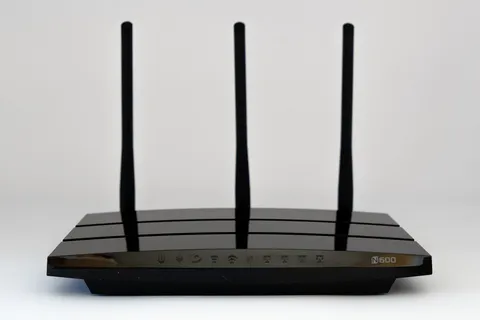
- Cover: „modem, antenna, router, technology, internet”, author: USA-Reiseblogger, licence Pixabay Content License; cropped or resized.
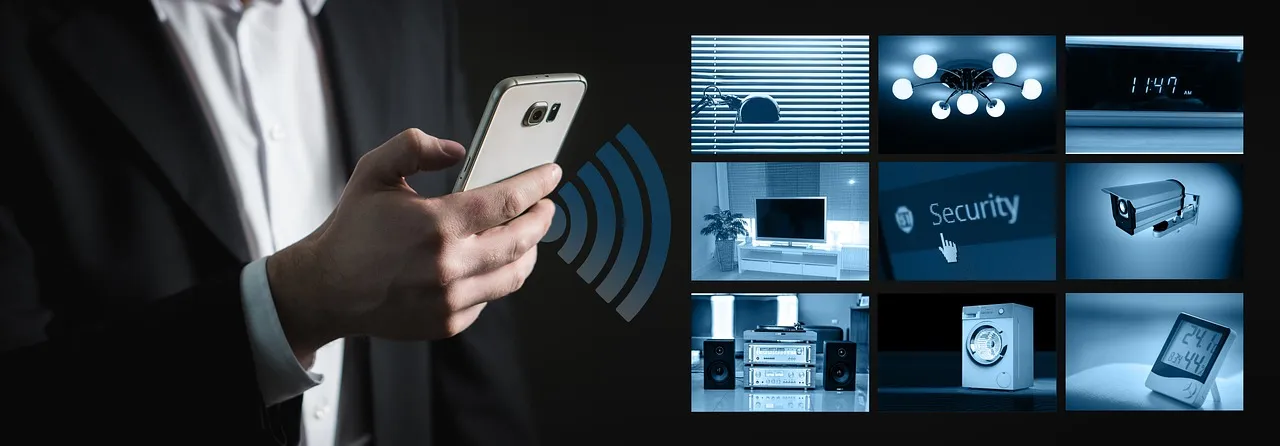
- Photo 1: „smart, home, system, man, person”, author: geralt, licence Pixabay Content License; cropped or resized.
Tags
Share with friends