Android Advanced Protection blocks public USB data access and PIN-guessing attempts
Android's Advanced Protection feature aims to shield phones from malicious USB chargers and thieves cracking PINs. It first appeared in Android 16 and is being developed further in version 17.
Author: Editorial teamPublished: 2 min read
Contents
Google is developing a set of Android security features called Advanced Protection. According to the Polish tech site Antyweb, on 1 November 2026, it is meant to make life harder both for criminals exploiting public chargers and for phone thieves.
What the feature does
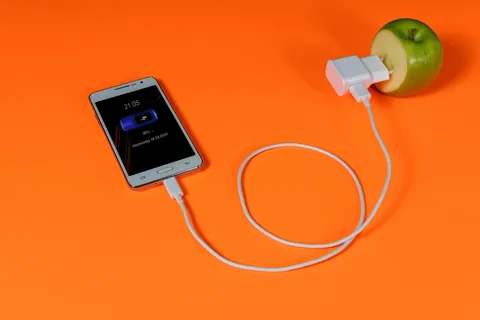
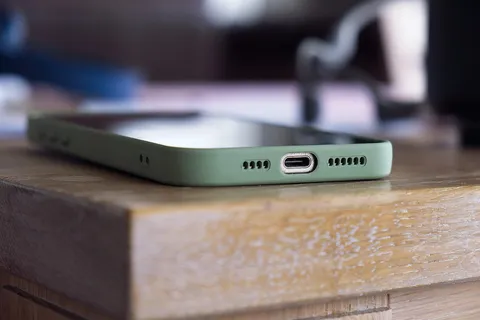
The first element is USB Protection. It protects the phone when it is plugged into publicly available USB ports, for example in a café, at a bus stop or on a train. When the phone is locked, the USB controller cuts the data lines and the device accepts power only for charging. An external computer, flash drive or tampered terminal cannot then read data or inject malicious code until the owner unlocks the screen with biometrics.
The second element is Failed Authentication Lock. It is designed to detect attempts to crack a PIN and impose a hard lock that only the real owner of the phone can lift.
Restrictions once it is on
Turning on Advanced Protection also brings stricter rules:
- installing apps from outside Google Play is blocked, including APK files downloaded from forums,
- Google Play Protect runs continuously and cannot be switched off,
- Chrome and the system messaging apps enforce secure protocols and are meant to cut off suspicious redirects and phishing attempts.
How to turn it on
According to Antyweb, the feature appeared in Android 16 and is being developed further in Android 17, so it is also available on newer phone models. To turn it on:
- Open the phone's Settings.
- Go to "Security and privacy" and find "Advanced Protection". On some devices the path leads through Google, then "All services" and "Advanced Protection".
- Follow the on-screen instructions and confirm your choice.
- Restart the phone. The restart is needed for the new system rules to take effect.
What this means for you
Public chargers are used while travelling, at stations, on trains and in cafés, including in the UK. Owners of phones running Android 16 or later can check whether the option is in their settings. There is a trade-off: once it is on, you will not be able to install apps from outside Google Play. The source does not say which specific phone models have the feature, so it is worth checking availability in your own device's settings.
Sources
This article was prepared automatically by AI from the listed sources and published without prior editorial review. Spotted a mistake? Use the “Report an error in this article” button.
Photos
- Cover: „phone, iphone, mobile, green, smartphone”, author: rmartinr, licence Pixabay Content License; cropped or resized.
- Photo 1: „vpn for entertainment, what is a vpn, data privacy, network security, cybersecurity”, author: StefanCoders, licence Pixabay Content License; cropped or resized.
Tags
Share with friends